How to Block Unknown and Unwanted Calls on Your Phone (iPhone or Android)
Read more
Tecnoblog
tecnoblog.net

How to Block Unknown and Unwanted Calls on Your Phone (iPhone or Android)

Inconvenient calls often arise from mass telemarketing campaigns, data leaks, or number reuse by operators. Fortunately, you can block unwanted calls using the built-in functions of iPhone or Android to restore peace of mind.

On iPhone, you can filter unknown numbers in phone settings or block individual contacts through call history. In Android, the 'Phone' app allows you to block unknown and private numbers with just a few taps, without needing to install additional applications.

Below, Tecnoblog shows how to quickly block unknown calls in daily life.

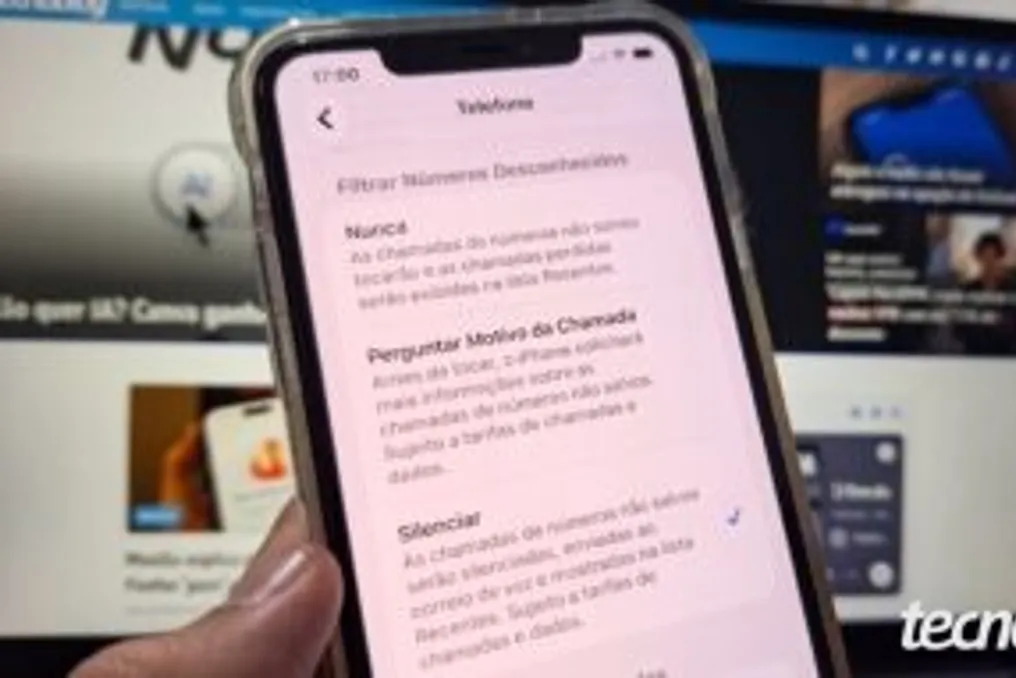
iOS provides a built-in tool to filter calls from numbers not in your address book via the 'Settings' section. To block unknown calls on iPhone, follow these steps:

  1. Open the 'Settings' app on iPhone.
  2. Go to the 'Apps' menu, then select 'Phone'.
  3. Find the 'Filter Unknown Callers' section and determine how the system should operate.

For blocking unknown calls on Android, no additional apps are required. To activate the built-in Google system feature, follow these instructions:

  1. Open the 'Phone' app on Android and select the 'Recents' tab in the bottom menu.
  2. Tap the three-dot icon in the upper right corner of the screen and select the 'Settings' option.
  3. Select the 'Block numbers' menu to manage device call filters.
  4. Activate the toggle next to 'Block calls from unknown numbers' to prevent calls from private or unidentified numbers.

iOS also has a quick and built-in way to block unknown numbers through the 'Phone' app. For direct individual blocking, follow these actions:

  1. Open the 'Phone' app on iPhone and tap the 'Calls' (or 'Recents', depending on the iOS version) tab.
  2. Find the unwanted call and tap the contact you wish to block.
  3. Scroll to the end of the screen, select 'Block this Caller', and confirm the action in the pop-up window by tapping 'Block this Caller' again.

You can also block numbers not in your Android contacts directly from the 'Phone' app's call history. Simply follow this path:

  1. Find the unwanted number in the list, tap on it, and open the contact details or options menu (three dots icon with three lines).
  2. Tap the 'Block' option at the bottom of the screen and confirm the action in the pop-up window to prevent further calls from this number.

Enabling the unknown caller blocking feature does not completely stop contact, as this depends on the phone's operating system. On Android, the function usually rejects the call before it rings on the device, but on some models, it only filters private or hidden numbers.

As for iPhone (iOS), the built-in tool only silences contacts not in your address book, redirecting the call straight to voicemail and saving the record in the 'Recents' section. In current versions, Siri also participates in intelligent sorting, asking the reason for the call before you decide to answer.

The excessive number of unwanted calls occurs because your contact has been included in mass mailing lists used by automated telemarketing, debt collection, or fraud systems.

Even after activating filters to block unknown calls, your phone may continue to receive calls due to technical system limitations or loopholes exploited by centralized dispatch centers. It is important to understand the main reasons why these calls bypass device protection.

Built-in phone blocks reduce spam volume but do not eliminate it by 100%. The most effective solution is combining these filters with free registration on the Não Me Perturbe platform, designed to block telemarketing calls with Anatel and prohibit offers from banks and operators.

After selecting the desired companies on the website or in the app, the service takes effect within 30 calendar days. If calls continue after this period, record the call details to file an official complaint with Anatel or Procon and avoid further contact with suspicious numbers.

Yes, you can mute unknown calls in WhatsApp directly in the account settings. Go to the 'Privacy' section, open the 'Calls' menu, and activate the 'Mute unknown callers' toggle to stop receiving calls from unfamiliar numbers.

It is also possible to block a number or group in WhatsApp to avoid receiving calls. However, these contacts must be saved in the device's or messenger's address book.
Similar stories

Samsung launches native feature to block applications individually on mobile phones
Read more
tecnoblog.net

Samsung launches native feature to block applications individually on mobile phones

Samsung has introduced a native feature in One UI 9.5 that allows for the individual blocking of applications on the brand's devices. This functionality aims to assist users who wish to restrict unauthorized individuals from accessing private information.

This new feature was initially made available in the operating system's Beta program for the Galaxy S26 line and is expected to be gradually implemented on other compatible devices, according to information released by the SamMobile website.

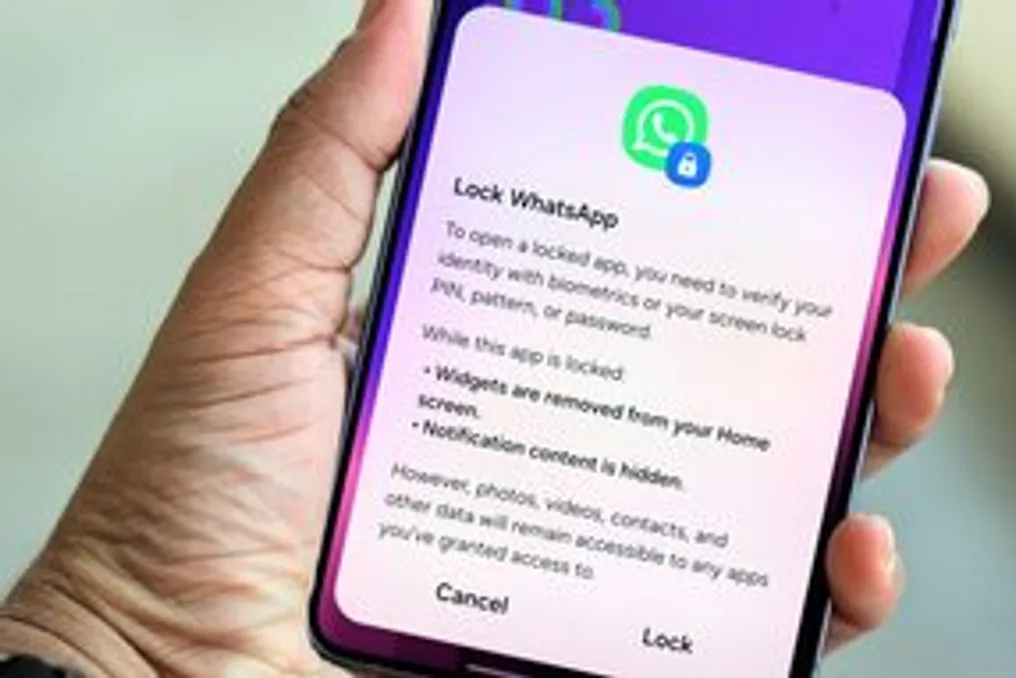
App Lock requires the same authentication method used to unlock the phone to be employed to access the blocked applications. This makes the function useful in situations where the device is handed over unlocked to third parties, but the user wants to prevent access to sensitive services, such as banking apps, messaging, or photo galleries.

In addition to protecting content, the lock also hides application notifications and causes corresponding widgets to disappear from the home screen once protection is activated.

It is important to note that not all applications can be protected. App Lock works with both third-party software and most applications developed by Samsung itself, including Gallery and My Files. However, programs such as Phone, Contacts, and Galaxy Store are listed among the exceptions.

On the Galaxy S26 Ultra model, Samsung incorporated this novelty into the Privacy Display, allowing side-view protection to be automatically activated whenever a blocked application is opened.

There are two ways to apply application blocking using App Lock in the One UI 9.5 version. The quickest method consists of pressing and holding the application icon on the home screen or app drawer and then tapping the padlock icon. Alternatively, through settings, the user can manage multiple applications simultaneously by accessing the 'Security and privacy' section to view the list of compatible apps and define protection for each one.

It should be noted that App Lock does not replace Secure Folder, a feature offered by Samsung on Galaxies since 2017. While the new tool requires authentication before opening an application from the standard profile, Secure Folder establishes an encrypted and isolated environment via Samsung Knox. Applications placed in this folder operate as autonomous copies, possessing their own data, logins, and files, which allows, for example, keeping separate accounts of the same service on the regular phone and in the Secure Folder, thereby increasing privacy.

Signal restricts screenshots on Android and iOS to protect messages from artificial intelligence
Read more
olhardigital.com.br

Signal restricts screenshots on Android and iOS to protect messages from artificial intelligence

Signal has implemented a screenshot restriction on Android and iOS systems with the goal of preventing artificial intelligence (AI) agents, such as Gemini and Siri, from reading messages and other data viewed within the application.

Meredith Whittaker, president of the service, pointed out that the inclusion of these agents in operating systems harms Signal's ability to autonomously ensure user privacy. When integrated into operating systems, such agents are capable of analyzing the content displayed on application screens to identify and use information, allowing them to interpret messages and other data presented to the user, even in services that use encryption.

Although this technology ensures message protection during transmission, it does not necessarily prevent external entities from accessing the content as soon as it is displayed on the device itself. This possibility is precisely what raises concerns at Signal.

According to Whittaker, the core of the problem lies in the fact that developers do not have appropriate methods to control which data these agents can access. Companies like Google, Apple, and Microsoft do not provide simple tools to limit this type of access without compromising essential application functionalities.

The concern also extends to third-party tools, such as Muse, developed by Meta. Such agents can leverage advanced application accessibility features, acting as a kind of master key to gain access to information.

In a post on the Signal blog, Whittaker classified this situation as a threat to privacy at the application level. She added that the absence of protection mechanisms also prevents the service from applying equivalent measures on macOS.

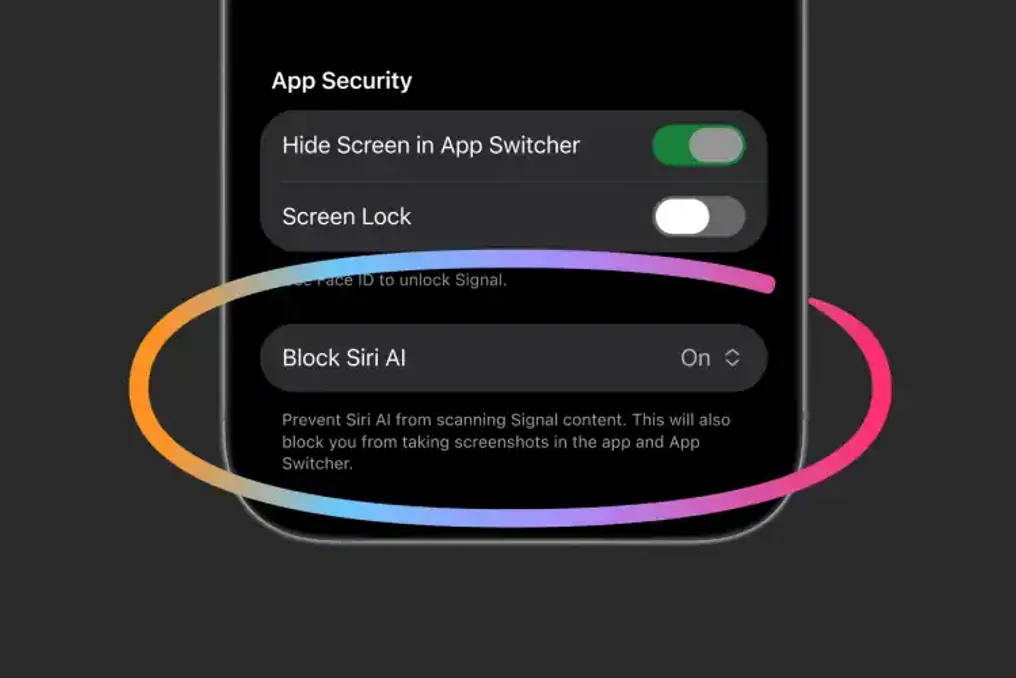
To mitigate the problem, Signal blocked screenshots within the app on Android and iOS 27 devices. This limitation aims to prevent Gemini, Siri, and other AI assistants from reading conversation content through this mechanism. Users have the option to reactivate this feature in the app's security settings, but Whittaker warns that this choice could expose both their own messages and those of their contacts to AI agents, compromising the service's privacy guarantees.

The president acknowledges that the implemented block is a partial solution, as it does not prevent other access routes, such as recovering data directly from the device's file system. The lack of details on how agents obtain this data also hinders the development of more efficient defenses.

Previously, Signal had adopted a similar tactic last year to prevent Microsoft's Recall feature from capturing protected conversations. Currently, the company requires Apple, Google, and Microsoft to provide uncomplicated technical tools and clear documentation so that developers can manage AI agent access to applications. The original article was published in Olhar Digital.

Regulatory agency determines that TIM must deactivate telemarketing blocking feature
Read more
tecnoblog.net

Regulatory agency determines that TIM must deactivate telemarketing blocking feature

The National Telecommunications Agency (Anatel) decided, on a precautionary basis this Friday, November 13th, that the operator TIM must deactivate the anti-spam functionality that prevents abusive telemarketing calls.

As detailed in the Anatel dispatch, TIM failed to comply with transparency requirements related to this type of service. A 24-hour deadline was granted for the operator to comply with the determination, counted from the receipt of the official letter.

In a statement, the agency pointed out that TIM 'did not provide the necessary information to ensure the minimum operating conditions of the tool without prejudice to the consumer.'

Anatel also mentioned that it had to intervene in September to reverse the 'undue blocking' of vital services offered by public entities, covering both emergency and health services.

Additionally, the agency requires TIM to simplify the process for contesting blocks and ensure 'adequate and timely' service to information requests made by the agency itself.

It is relevant to note that TIM never officially disclosed the implementation of this technology to the press. The Tecnoblog portal had reported in September that the provider was developing such a tool after disagreements with Vivo, which was the first company in the sector to offer an anti-spam feature.

Currently, the official TIM Anti Spam page describes that the system has the capacity to identify and block 'inconvenient and repetitive calls made by mass callers.' The company states that it considers the call volume and traffic pattern within its network. This service is offered free of charge to all customers and is active by default, at least until Anatel orders its shutdown.

Popular