
Google Maps, Waze, and Apple Maps record parking locations and offer return routes
Read more
AutoPapo
autopapo.com.br

Google Maps, Waze, and Apple Maps record parking locations and offer return routes

Forgetting where you parked is a common problem that can be solved for free using features already present in most smartphones. The Google Maps, Waze, and Apple Maps applications have the ability to record the exact point where the vehicle was left and then plot a walking route back to that location. This feature is particularly useful in large venues, such as Shopping Leste Aricanduva in São Paulo, which has almost 15,000 spaces.

In Google Maps, saving the parking spot requires only two taps: the user must open the application, tap the blue dot indicating their location, and select the 'Save parking' option. After this, the location is marked on the map with a pin and the message 'You parked here' is displayed. To return, simply tap this marker and choose the 'Directions' option, which will draw the way back.

It is possible to add extra details to the marker, such as the spot number, the parking level, and photos of the surrounding area. There is an important distinction between operating systems: on Android, the point remains saved until the driver decides to delete it; on iPhone, the marker expires after 48 hours or as soon as the app detects that the car is running again. This feature is available on both platforms.

If the location was not saved manually, there is still the Google Maps Timeline feature, formerly known as Location History, which stores the places the phone traveled through. However, since the end of 2024, this data is kept exclusively on the device and can no longer be viewed on a computer, and is deleted by default after three months. It is necessary for the history to be active for this feature to work.

In Apple Maps, the recording can happen automatically. When the iPhone is connected to the car via Bluetooth or Apple CarPlay, the system records the position at the moment the phone connection is interrupted, causing the parked car marker to appear on the map.

Waze operates under a similar logic: upon identifying that the engine has been turned off and the phone is no longer connected to the vehicle system, it fixes the 'Parked here' point, which can be used to start a walking route. However, the application only saves the last occurrence.
Similar stories

How to use Google Maps to locate an iPhone using history and location sharing features
Read more
tecnoblog.net

How to use Google Maps to locate an iPhone using history and location sharing features

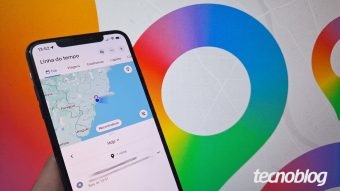
There are two functionalities available in Google Maps that can be used to try and locate an iPhone: the 'Your Timeline' feature and the 'Location Sharing' function. The first option allows checking the last recorded destinations, which is useful if the device was left in a recently visited location.

Real-time location sharing allows displaying the device's movement on the map to trusted people. This alternative is especially indicated for parents monitoring their children or for family members who need to ensure greater safety for the elderly.

Tecnoblog details below how to use these two tools to track the iPhone via Google Maps. It is important to note that the methods tested by Tecnoblog are not effective if the phone has been stolen, as they do not provide precise real-time location nor do they depend on prior settings for monitoring.

In situations of theft or robbery of the phone, the recommendation is to use the Find My app in iCloud through a browser. This feature allows remotely locking the iPhone to protect data and subsequently contacting the carrier to request cancellation of the SIM card and IMEI. Furthermore, it is crucial never to attempt to recover the stolen device yourself; a police report must be filed, and all details provided to the competent authorities.

The location procedure via Google Maps is advised only when the device was recently forgotten, as the system can identify its location based on the last online signal transmitted by the device.

To start the process, it is necessary to use another iPhone or an Android phone to access Google Maps. After opening the application, you must tap the profile picture located in the upper right corner to access the main menu. Then, tap the arrow next to the user's name to choose or add the Google Account associated with the iPhone you wish to find, selecting the correct profile to proceed.

With the account duly selected, the user must click on 'Your Timeline' to view recent GPS travel records of the lost iPhone. On the 'Today' tab, it is possible to check the last registered point of the iPhone, keeping in mind that this tool does not display real-time location. If there is no data for the current day, it is suggested to use the Google Maps calendar within the 'Today' tab to check movements that occurred on previous days.

This method serves as a solution for parents who want to track their children's routes or for relatives who wish to monitor elderly family members. For the person being monitored to report their location in real time, they must first open Google Maps on their own iPhone and tap the profile picture in the upper right corner to see the main options.

One must then select the 'Share Location' option and confirm by tapping this option again to enter the real-time location sending menu. In the dedicated sharing section, the user can define the sharing period using the available buttons or opt for 'Until you turn off' to maintain continuous transmission. Finally, select the contact who will receive the map with the real-time movement in Google Maps and click 'Share'. To finalize the sharing, simply return to the 'Location Sharing' option, select the corresponding contact, and tap 'Stop.'

Although trying to locate the iPhone via Google may be useful, the feature has significant limitations compared to the Apple ecosystem. One obstacle is that it is not possible to track a phone that is turned off using the Google account, since the service requires the device to be connected to the internet to send the exact location; without a connection, the page will only display the last GPS record before shutdown.

To try and locate an iPhone that is turned off, it is essential that the 'Find My' function is activated in the iOS system before the incident, allowing access via iCloud. Apple's system uses Bluetooth signals from other nearby devices of the same brand to indicate the position on the map, a functionality that is not available in Google.

Popular