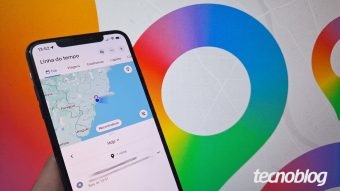
There are two functionalities available in Google Maps that can be used to try and locate an iPhone: the 'Your Timeline' feature and the 'Location Sharing' function. The first option allows checking the last recorded destinations, which is useful if the device was left in a recently visited location.
Real-time location sharing allows displaying the device's movement on the map to trusted people. This alternative is especially indicated for parents monitoring their children or for family members who need to ensure greater safety for the elderly.
Tecnoblog details below how to use these two tools to track the iPhone via Google Maps. It is important to note that the methods tested by Tecnoblog are not effective if the phone has been stolen, as they do not provide precise real-time location nor do they depend on prior settings for monitoring.
In situations of theft or robbery of the phone, the recommendation is to use the Find My app in iCloud through a browser. This feature allows remotely locking the iPhone to protect data and subsequently contacting the carrier to request cancellation of the SIM card and IMEI. Furthermore, it is crucial never to attempt to recover the stolen device yourself; a police report must be filed, and all details provided to the competent authorities.
The location procedure via Google Maps is advised only when the device was recently forgotten, as the system can identify its location based on the last online signal transmitted by the device.
To start the process, it is necessary to use another iPhone or an Android phone to access Google Maps. After opening the application, you must tap the profile picture located in the upper right corner to access the main menu. Then, tap the arrow next to the user's name to choose or add the Google Account associated with the iPhone you wish to find, selecting the correct profile to proceed.
With the account duly selected, the user must click on 'Your Timeline' to view recent GPS travel records of the lost iPhone. On the 'Today' tab, it is possible to check the last registered point of the iPhone, keeping in mind that this tool does not display real-time location. If there is no data for the current day, it is suggested to use the Google Maps calendar within the 'Today' tab to check movements that occurred on previous days.
This method serves as a solution for parents who want to track their children's routes or for relatives who wish to monitor elderly family members. For the person being monitored to report their location in real time, they must first open Google Maps on their own iPhone and tap the profile picture in the upper right corner to see the main options.
One must then select the 'Share Location' option and confirm by tapping this option again to enter the real-time location sending menu. In the dedicated sharing section, the user can define the sharing period using the available buttons or opt for 'Until you turn off' to maintain continuous transmission. Finally, select the contact who will receive the map with the real-time movement in Google Maps and click 'Share'. To finalize the sharing, simply return to the 'Location Sharing' option, select the corresponding contact, and tap 'Stop.'
Although trying to locate the iPhone via Google may be useful, the feature has significant limitations compared to the Apple ecosystem. One obstacle is that it is not possible to track a phone that is turned off using the Google account, since the service requires the device to be connected to the internet to send the exact location; without a connection, the page will only display the last GPS record before shutdown.
To try and locate an iPhone that is turned off, it is essential that the 'Find My' function is activated in the iOS system before the incident, allowing access via iCloud. Apple's system uses Bluetooth signals from other nearby devices of the same brand to indicate the position on the map, a functionality that is not available in Google.