How to turn an iPhone into a simple phone using Accessibility and WhatsApp
Read more
Tecnoblog
tecnoblog.net

How to turn an iPhone into a simple phone using Accessibility and WhatsApp

The ability to convert an iPhone into a simple phone (dumbphone) is available by activating the Accessibility Assist feature in the device settings. This feature, introduced in iOS 17, is configured through the Accessibility menu and allows users to select compatible applications and set a unique security password.

This tool is ideal for creating a phone for elderly people or for those who prefer a simplified interface without distractions. In addition to easing navigation in vital applications like WhatsApp, this feature extends the lifespan of an older iPhone by optimizing the system for basic tasks.

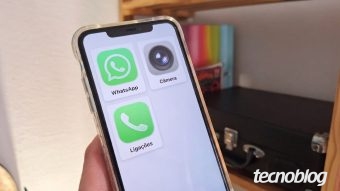
Accessibility Assist transforms an iPhone into a feature phone, replacing the main screen with a minimalist launcher featuring large buttons. This simplified interface excludes folders and widgets, making it an ideal choice for a simple phone for seniors.

Applications display with enlarged controls and simplified navigation via a fixed 'Back' button. For example, in apps such as WhatsApp and Camera, icons, photos, and text are displayed significantly larger, ensuring complete clarity and the absence of distracting elements.

Accessibility Assist on iPhone disables advanced iOS features to create a simple phone user experience, focusing on accessibility. Before turning an old iPhone into a phone for the elderly, several requirements must be met to set up the Accessibility Assist mode.

With the help of a trusted person, you need to open the 'Settings' app and navigate to the 'Accessibility' section. Then, enter the 'Accessibility Assist' menu and tap 'Set up Accessibility Assist.' After that, press 'Continue' to begin configuring the iPhone's accessibility.

It is necessary to verify whether the Apple account linked to the iPhone belongs to the person who will use the device. If the account is correct, simply press 'Continue'; otherwise, select 'Change Apple Account' and log in to the correct account.

Next, the user must define the appearance of icons and text in the Accessibility Assist simplified interface by choosing one of two options. After selecting the desired option, press 'Continue' to proceed with the configuration.

The next step is to tap the '+' button next to desired applications, such as WhatsApp, Phone, and Camera, and configure access permissions for these programs. After selecting the applications, press 'Continue.'

After reviewing the information about Accessibility Assist, press 'Continue.' Then, ensure that password and biometric options (FaceID or TouchID) for unlocking the iPhone screen are activated.

It is important to note that the person using the iPhone in Accessibility Assist mode must know the screen unlock combination. If they do not know it, they must press 'Change Security Settings' to register a new password or biometrics.

A unique code must also be created to manage the Accessibility Assist function on the iPhone. This combination will be used both to exit accessibility mode and to change settings on the senior's phone.

To link a backup email in case the device owner forgets the Accessibility Assist code, press 'Set up Apple Recovery Account.' It may only be possible to create an account with recovery functionality.

Crucially: without a registered recovery account, the iPhone will require formatting if the user forgets the Accessibility Assist password.

After reading the instructions on exiting Accessibility Assist, press 'Continue,' then select 'Start Using Accessibility Assist' and enter the mode code to turn the iPhone into a simple phone.

After logging into Accessibility Assist, the user will be redirected to the home screen with the selected configuration elements. Thus, the iPhone will function as a simple phone with WhatsApp and other apps in iOS accessibility mode.

To exit the simplified interface of the senior's phone, simply triple-press the side button or Home button. Then, select the 'Exit Accessibility Assist' option and enter the unique password set for this mode.

If the code is forgotten, the recovery option can be used by entering the Apple Recovery account details. The device will securely check access and restore the standard iOS operating system appearance.

Similar stories

ChatGPT on iOS gains feature to create custom sticker packs
Read more
olhardigital.com.br

ChatGPT on iOS gains feature to create custom sticker packs

ChatGPT has been updated on the iOS operating system with the inclusion of a new feature that allows users to create custom sticker packs. These creations can subsequently be shared via WhatsApp and Apple's iMessage.

To ensure a uniform appearance among the created stickers, the process utilizes a combination of images, predefined styles, and emojis. Furthermore, the application received improvements in how photos are attached and now displays a warning when an internet connection is required.

The procedure to start the creation involves accessing the 'Images' option located in the sidebar of ChatGPT and then selecting 'Stickers' to enter the dedicated interface for this feature. The user has the freedom to choose one of the available styles, select a desired image, and add one or more emojis. From this composition, ChatGPT generates the stickers following the chosen aesthetic standard.

After finalizing the pack, simply press the corresponding button to add it to the sticker applications, making it available for selection and sending to contacts.

ChatGPT has also implemented a small enhancement for those who frequently send images during interactions. Instead of just pressing the '+' button, the user can now long-press it, which directly opens recent photos, facilitating the choice of the image to be attached. This modification simplifies media access within the application.

Another important change relates to connectivity; ChatGPT now notifies the user if it is waiting for a network connection. This alert aims to clarify the reason for any perceived delay while using the application.

With these updates, ChatGPT on iOS expands its capabilities beyond conventional interaction with artificial intelligence, with the creation of sticker packs being an example of personalized content that can be shared in conversations.

How to change the password and screen lock code on iPhone and iPad
Read more
tecnoblog.net

How to change the password and screen lock code on iPhone and iPad

It is possible to modify the iPhone password through the Settings app. The process involves accessing the menu named Face ID & Passcode, selecting the Change Passcode option, and then establishing a new combination for use on the device's lock screen and for confirming system operations.

Changing the iPhone password serves as a security measure to prevent unauthorized access, especially if another person discovers the current code and gains access to the device's data.

The detailed procedure for changing the iPhone password is the same one applicable to the iPad, as the iOS and iPadOS operating systems have functional similarities.

To start, you must open the Settings app on the iPhone to enter the device's configurations. Next, access the Face ID & Passcode menu (or Touch ID & Passcode on older models) and enter the current iPhone password to proceed.

Scroll down to locate the Change Passcode option and tap it. You will need to re-enter the current password to continue. If desired, you can tap Passcode Options to determine the format of the iPhone password.

Finally, create a password following the selected model and repeat this combination to complete the change of the iPhone lock password.

When changing the iPhone password, you can opt for several types of access codes:

  • 4-digit numeric code: A simple PIN that uses only four digits for unlocking.
  • 6-digit numeric code: A more robust PIN, composed of six digits, which is the default option when setting a password on the iPhone.
  • Custom numeric code: Allows defining a numeric PIN with any desired number of digits for the lock screen.
  • Custom alphanumeric code: Offers the possibility of creating a strong password by combining letters and numbers, with the quantity of digits the user prefers.

If the user has forgotten the iPhone or iPad code, it is possible to make the change using one of the specific methods for recovering a device with a forgotten password, after which the standard lock password change procedure can be executed.

Additionally, it is possible to completely remove the iPhone or iPad code by accessing the Face ID & Passcode menu within the Settings app and selecting the Turn Passcode Off option, which eliminates the device's password lock functionality.

Popular