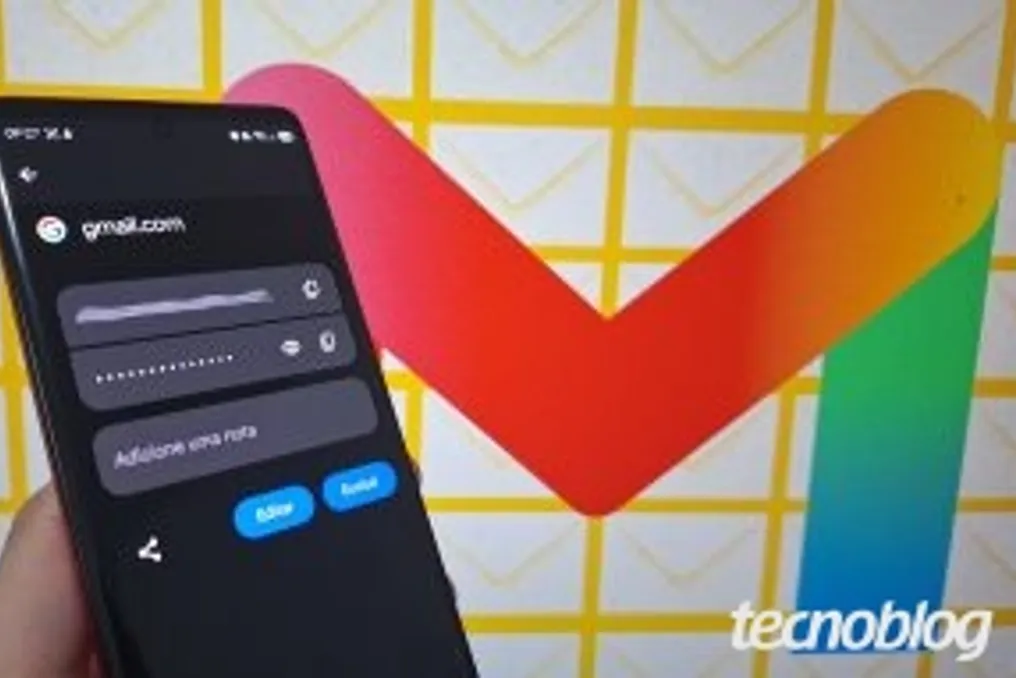
It is possible to access your Gmail password with the help of password managers available on Android, iPhone, or PC devices. This procedure will only be viable if your Google Account credentials were previously saved in the operating system's security vault or in the browser itself.
Consulting this access history represents the most practical way to find your Gmail password without needing to reset it. This is because the official email service application prevents the display of the password for security and privacy reasons.
The methods to retrieve your Google email password depend on whether the credentials were previously saved in Google Password Manager or Apple Passwords. These platforms securely store login data on the device or browser, allowing you to verify the password associated with the email.
If the information is not stored in the cloud or the system, the only alternative is to recover your Google Account password through the security options and establish a new combination.
To begin, open the Google Chrome browser on your computer and click the three-dot icon located in the upper right corner. In the menu that opens, select the 'Settings' option to proceed.
Next, navigate to the tab titled 'Autofill and passwords,' which is located in the left panel of the screen. Click on 'Passwords' to access a menu containing all the credentials saved by Google Password Manager.
Within the 'Passwords' menu, select the profile for which you wish to view the Gmail password. After completing authentication using the system's PIN or biometrics, click the eye icon next to the 'Password' field to reveal the Google email password saved in Google Chrome's manager.
It should be noted that it is not possible to view or discover the Gmail password directly through the official application, as the system does not show the registered code for privacy reasons; the application uses an encrypted authentication token only to keep the session active on the mobile phone.
In the event that you lose access, the only way out is to change the Gmail password in the email's security settings. This action invalidates the previous credential and allows you to set a new access key for your Google Account.
If you cannot view the credential, the only remaining solution is to reset your Gmail password by following the Google Account recovery flow. It is recommended to attempt this process on a browser, computer, or location that you habitually use.
If you still have access to the email on another device, go to the security settings to update the code immediately after restoring the login to Gmail. Subsequently, register updated phone numbers and recovery emails to prevent future blocks.