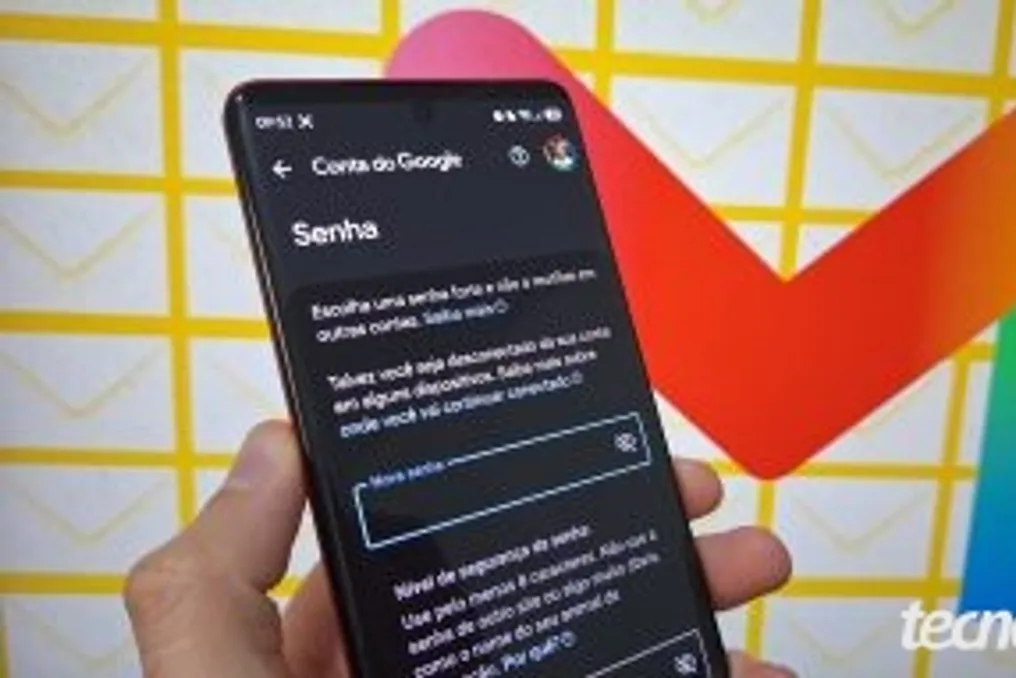
Changing your Gmail password is a fundamental procedure to ensure the protection of your Google Account, and it can be done through a direct link, the Gmail app, the Google app, or by using a browser on a computer. In all these four procedures, the password change is centralized in a single point, which guarantees the safeguarding of the entire digital environment.
After changing your Gmail password, the system has the ability to automatically end all active sessions on various devices and browsers, thus preventing unauthorized access. Additionally, it is essential that the new access credential is updated in password managers and third-party applications.
Below, we detail the step-by-step process for changing your Gmail password on different platforms.
The direct link feature is best suited for users who are already logged into their Google Account and know the current password. This method simplifies the process by immediately directing the user to the security page designated for resetting the password.
For those who prefer to manage their Google Account on mobile devices, the password can be changed using the app. This app speeds up verification by leveraging the existing login to make security changes.
Using the Google app to modify the email password is recommended for those who wish to centralize Google Account security but choose not to use the native Gmail app. This tool consolidates settings in one place, facilitating the user experience.
Changing the Google Account and Gmail password through a PC browser is indicated for those seeking a complete interface with advanced features, offering a broad view of the security dashboard. To do this, you must access gmail.com in the PC browser, click on the profile picture in the upper right corner, and select the 'Manage your Google Account' option.
Next, you must choose the 'Google Password' option, located in the left sidebar, to proceed. It is necessary to enter the current credential or use one of the available login methods to access the account access code change functionality. After typing the new password in the designated field and confirming it, the process is finalized by clicking the 'Change password' button.
If you need to recover your Gmail password, you must access the Google Account login page and select the 'Forgot password?' option. The system will initiate an identity verification process, sending a code via SMS, alternative email, or notification on the registered Android phone. Only after validating the identity in this recovery flow will the system display the screen to change the Gmail password with a new code. Finally, it is crucial to remember to update this new password in your password manager to prevent issues with future Gmail access.
Various protections are automatically applied when changing your Gmail and Google Account password. When modifying the Gmail password, the configured passkey is not deactivated or removed from the Google Account. This is because the access key depends on the device's own biometrics or PIN, functioning independently of the traditional password. The only observed change is the automatic termination of active sessions on other devices, aiming to protect the profile. Thus, access via passkey remains practical on the main device, while the new password serves as a secure login alternative.
There is no distinction between the Gmail password and the Google Account password, as both use exactly the same access credential. Due to the integrated ecosystem, a single code allows direct access to email and services such as Drive, YouTube, and Photos. Consequently, when the password is reset in Gmail, the change is automatically synchronized across all related products. The only exception occurs when using specific application passwords for older software, but the main login remains centralized in the Google Account.