Setting up a PIN on the cell phone chip serves as a security safeguard, aiming to protect the phone line against unauthorized access. This procedure can be performed on both Android devices and iPhones, using the security options available in the respective operating system.
The main advantage of this feature is ensuring chip protection if it is lost or stolen, as a password will be requested every time the device is restarted. This prevents malicious individuals from using the number on other devices or attempting to capture verification codes sent via SMS.
Summary
Below are detailed the necessary steps to activate the chip PIN on Android and iPhone systems.
How to configure the chip password on an Android phone
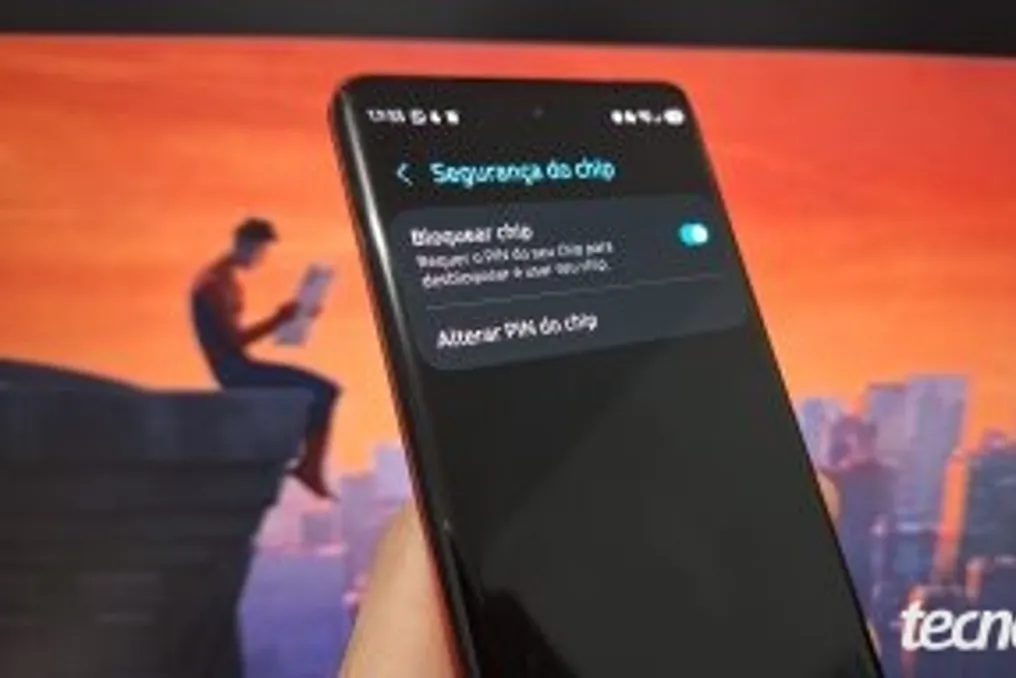
To configure on an Android, one must start from the device settings. Then, select the option named 'Security & emergency' or, depending on the manufacturer, 'Passwords & privacy'. The user must navigate to 'More security settings' or 'Privacy' and access the 'Chip Security' menu. There, it is necessary to activate the switch next to the 'Lock chip' option.
After that, the user must enter the default PIN provided by the carrier and confirm with 'OK'. Subsequently, they must tap on 'Change chip PIN' and re-enter the carrier's PIN. Finally, it is necessary to register a new, exclusive PIN to secure the cell phone chip.
How to set the PIN on the chip using an iPhone
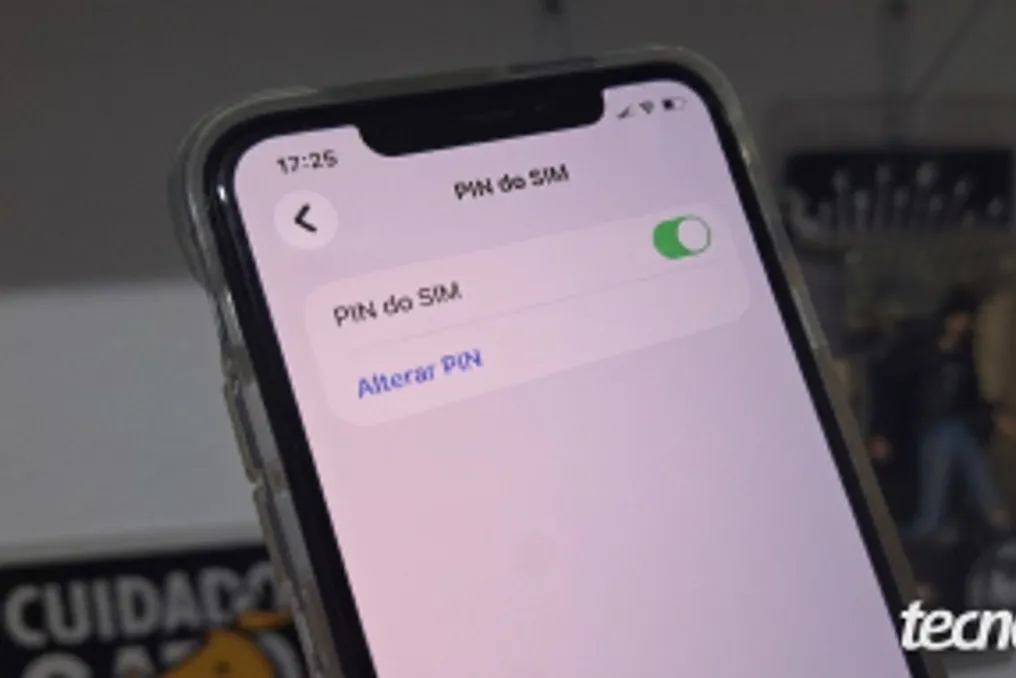
On the iPhone, the process begins by opening 'Settings' and selecting 'Cellular'. By scrolling down the screen, the user finds and selects the 'SIM PIN' option. The corresponding switch for 'SIM PIN' must then be activated.
It is necessary to enter the carrier's default PIN and confirm by pressing 'OK' or the checkmark icon (✓) in the upper right corner. After enabling the chip PIN, the next step is to tap on 'Change PIN' and enter the carrier code again. Lastly, a custom SIM PIN is created to add an extra layer of protection to the chip.
What are the default codes for the chip PIN?
When implementing a password on the chip, the first attempt requires the factory code established by the carrier. This information is usually printed on the plastic card accompanying the SIM, along with the PUK, PIN2, and PUK2 credentials.
If the original envelope has been lost, there are common factory numbers for major Brazilian carriers: Claro uses 3636, Vivo uses 8486, and TIM uses 1010.
What happens when activating the chip PIN on the phone?
There are several consequences to activating the chip PIN on the smartphone. Firstly, there is protection during restarts and transfers, as the SIM or eSIM chip will require the password whenever the phone is turned on or inserted into another device, preventing improper use of the line.
Another effect is the blocking of the mobile network; calls, SMS sending, and mobile data usage are completely suspended without code validation. Furthermore, data and account security is reinforced, as this additional layer prevents third parties from using the number on another phone to make calls or intercept bank confirmation SMS.
It is important to note that this function operates independently of the phone's system, protecting only the carrier chip, while access to photos, applications, and Wi-Fi still depends on the device's screen lock. However, there is a risk of lockout due to errors: entering the PIN incorrectly three times locks the chip, requiring the carrier's PUK code. Persistent incorrect password entry can lead to permanent component disablement.
If the user forgets the chip PIN, the fastest method is to consult the original plastic card, which contains the default code and the PUK key. In some situations, this information can also be accessed through the carrier's official application. Entering the PIN sequence incorrectly three times triggers the request for the PUK key to restore access and set a new password. If the security keys are not found, it is recommended to contact the carrier support directly to obtain release. One should never try to guess the PUK, as multiple errors permanently deactivate the chip, requiring the issuance of a new SIM or eSIM. Moreover, chip security constitutes a carrier protocol, being entirely distinct from the password used to unlock the smartphone screen.
Is it possible to remove the chip password after activating it?
Yes, it is possible to disable the chip PIN at any time through the system settings, on both iPhone and Android. To finalize this process, it is necessary to deactivate the chip lock option and enter the current SIM password to confirm the modification.
If the user does not know the current password, they should avoid repeated attempts, as this may lock the chip PIN, and they should use the PUK code provided by the carrier. When removing this protection, the phone will stop requesting the code upon restart, but the line will become vulnerable if the chip is transferred to another device.