Testing a cell phone's microphone is an effective method for detecting audio system problems, whether you are buying a new or used device. The basic procedure involves using the native voice recording application available on both Android and iPhones to check sound capture capability.
Causes of audio failures
Audio input difficulties can be caused by dirt accumulation on protective grilles, privacy restrictions imposed by the operating system, or momentary software glitches. Additionally, physical damage resulting from drops can also impair the function of this component.
Hardware repair and maintenance
When the problem lies with the hardware, replacing the part is an option. However, in contemporary smartphones, the microphone is often soldered to an auxiliary board, which requires intervention from specialized technicians for repair.
Step-by-step guide for testing
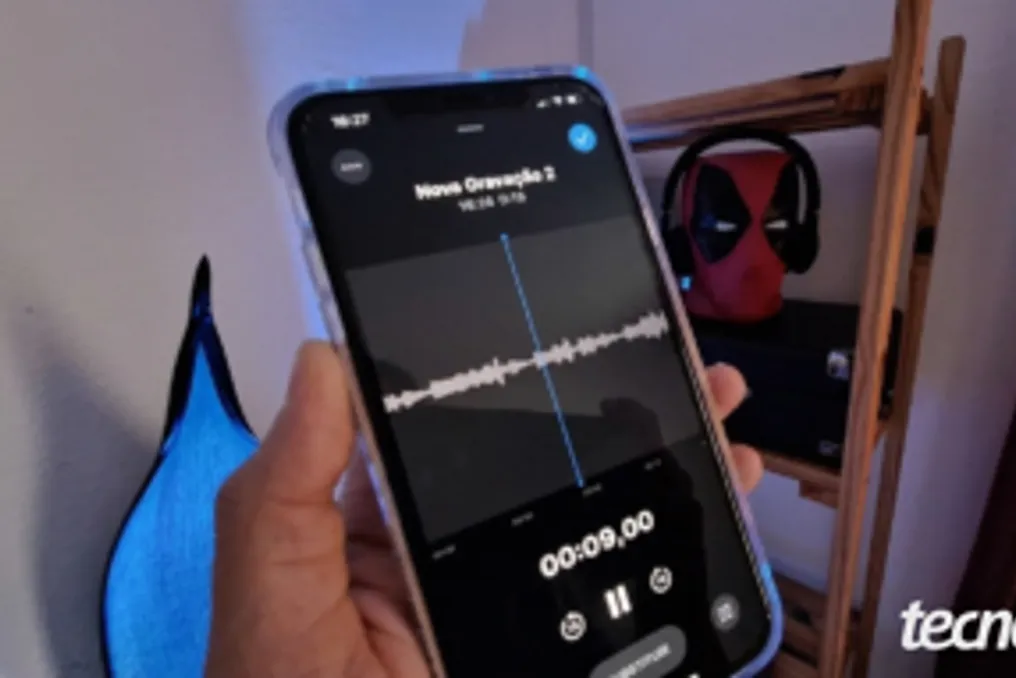
To perform the test, you must first open the device's native Recording or Voice Notes application. You need to authorize microphone access to the application if prompted. Next, start a recording by pressing the red button at the bottom of the screen. A useful tip is to record a message in a normal tone and observe how the waveform behaves on the display.
Checking recording quality
After saving the audio, it should be played back to assess voice clarity. If the voice is captured clearly, the microphone is operating correctly. Otherwise, it is recommended to seek assistance from an accredited technical service.
Specific test on Samsung
On Samsung devices, the test can be performed through the Samsung Members application. After opening the app and, if necessary, registering on the platform, the user should access the 'Diagnostics' tab and select 'Phone Diagnostics' to map the components. Upon locating the 'Microphone' icon in the hardware list, tap it and then 'Record', speaking near the device. Afterward, tapping 'Play' allows you to evaluate the recording. If it is correct, confirm by tapping 'Yes', repeating the process with the second microphone.
Reasons why the microphone might stop working
There are several factors that can prevent the microphone from functioning. These can include physical obstructions, such as dust or protective cases covering the microphone grille; or system blocks, where the privacy settings of the iPhone or Android have disabled access. Other causes include denial of access by a specific application, connection conflicts with Bluetooth headphones or background running applications, sound adjustments like 'Do Not Disturb' mode, or temporary software failures, such as bugs after updates.
Alternative solutions for microphone problems
If native tests are unsuccessful, some additional actions may help. It is advisable to restart the device and disable Bluetooth to eliminate temporary glitches and ensure that the audio is not stuck in paired accessories. It is also important to clean the sound inputs, removing cases and using a soft brush on the grille. Users should check the system's privacy permissions to ensure the microphone is released for the necessary apps.
Software and application maintenance
Other measures include closing all background applications, updating the operating system, and clearing the cache of problematic applications to remove corrupted files. If the error is isolated to a single application, reinstalling it may restore its original settings. If none of these steps resolve the issue, it may indicate physical damage to the part or the audio controller chip, requiring specialized technical support.
Component replacement
Although it is technically possible to replace the microphone, in modern models, this component is usually soldered onto a sub-board or integrated into the flex cable. For this reason, repair often involves replacing the entire module, not just the individual part. Due to high complexity, which requires precision tools and microsoldering techniques, the service must be carried out at an authorized technical service to guarantee the use of original parts and the integrity of the device.