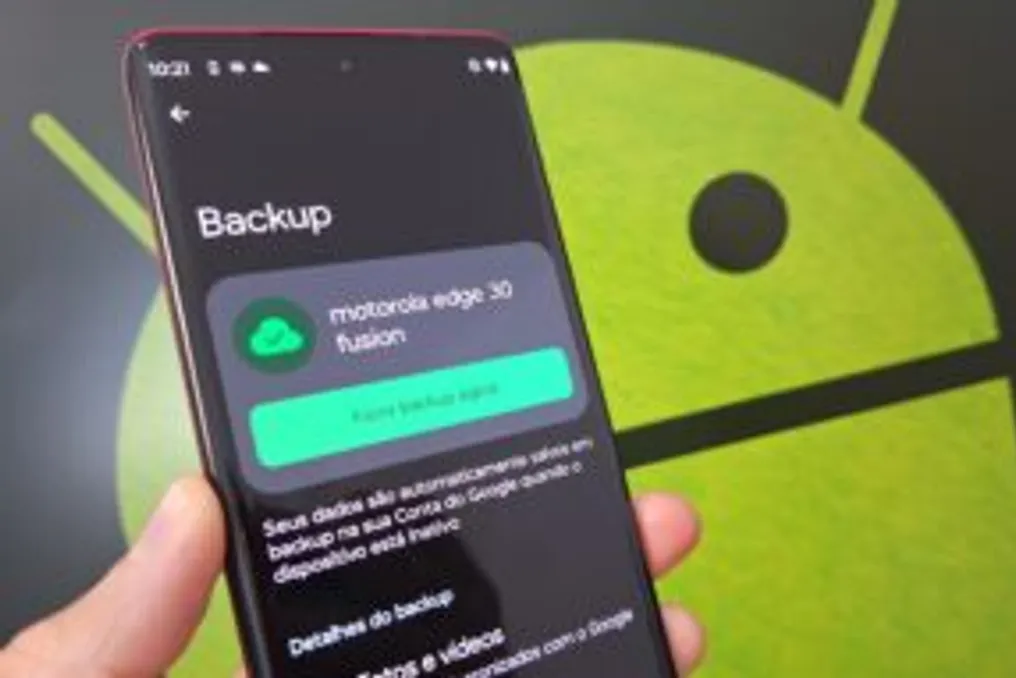
Using the Google account to create a backup of an Android phone is the most effective way to safeguard crucial information in the cloud. The procedure is quite straightforward: simply access the system settings, enter the Google account services menu, and configure automatic synchronization to activate the backup.
What does the backup store?
This backup process stores various elements directly in Google's cloud, including application data, system preferences, call logs, and text messages. This routine is essential for facilitating the transition to a new device and ensuring quick data recovery in case of any unforeseen event.
Step-by-step guide for backup
To start backing up Android with a Google account, the user must first open the device settings by swiping up on the screen and looking for the gear icon. Next, they should navigate to the 'Google' or 'Google Services' option to manage account preferences. From there, it is necessary to select the 'All services' tab to view all available features, including the path to configure the Android backup.
The next step is to tap on the 'Backup and restore' section and finally select 'Backup'. To complete, the user must press 'Back up now' and wait for the data transfer to finish. If the backup function is disabled, it is recommended to tap 'Turn on backup', confirm the details, and start saving to the cloud.
Types of data saved in the cloud
Android backup managed by Google typically includes device data, applications, and selected media. Among the types of backups stored in the cloud are application data, which saves program progress and preferences, aiding in device switching.
System settings are also saved, such as known Wi-Fi passwords, wallpapers, and home screen layouts, simplifying restoration. Additionally, contacts and calendars keep phones, emails, and appointments synchronized for immediate access. Call history and SMS are also recorded, preserving this information when restoring the backup on a new device.
Media captured by the camera is sent to Google Photos, provided that automatic synchronization is active. Google Drive files are also kept safe, except for those saved offline.
Tips for saving space in the cloud
To prevent the full storage alert in the Google cloud service, there are practices that help reduce the space occupied by the Android backup. An important point is disabling file duplication, such as photos and videos from WhatsApp, which are automatically synchronized both by Google Photos and the messenger.
To avoid this waste, you can disable WhatsApp folders in Google Photos by accessing the gallery, tapping 'Albums', selecting the desired folder ('WhatsApp Video' or 'WhatsApp Images'), and disabling the 'Backup' toggle. Alternatively, you can configure WhatsApp backup to ignore heavy media by going to the messenger settings, in 'Chats', opening 'Chat backup', and disabling the 'Include videos' toggle.
Another measure is disabling specific backup categories, such as SMS and call history, by following the path: Settings > Google Services > All services > Backup > Other device data. By disabling the toggles next to 'SMS Messages' and 'Call history', unnecessary accumulation of these records is prevented.
It is advisable to limit the backup only to essential applications. In the 'Other device data' menu, under the 'App data' section, you can disable the backup of less critical software. However, it is highly recommended to keep the backup of vital tools, such as Google Authenticator and other two-factor authentication (2FA) methods, due to the difficulty of reconfiguration on new devices.
To optimize media upload, it is possible to configure a backup focused only on specific photos and videos. In the backup menu, select 'Photos and videos' and then 'Standard backup'. Then, open 'Device Folders' and check the desired directories. Additionally, changing the upload quality in Google Photos from 'original' to 'compressed' significantly reduces video size.
Finally, it is crucial to establish the habit of periodically reviewing Android backup settings, adjusting them to ensure that only the data requiring continuous protection is saved to the cloud.
Costs of backup on the Google account
Initially, there is no cost to use backup on the Google account, as the service provides 15 GB of free storage, distributed among Gmail, Drive, and Photos. Payment only becomes necessary when backup data exceeds this free quota, requiring a Google One subscription, since phone information uses this shared space.