Including an SSD, or solid-state drive, instead of traditional HDDs represents one of the most effective upgrades to transform a computer's user experience. Due to its higher data transfer speed, the SSD allows the operating system, software, and heavy files to be opened much more quickly and pleasantly.
How does an SSD work?
An SSD is the component responsible for storing all the computer's data, including programs, photos, and the operating system itself. It replaces the old hard drive (HDD), but with a fundamental difference: it has no internal moving parts. Unlike the spinning disks and read heads of an HDD, the SSD stores all information digitally on memory chips, functioning like an extremely fast USB drive.
The main advantage lies in speed. Since there is no need to wait for mechanical components to move to locate a file, the SSD boots the computer in a few seconds and loads programs almost instantly, making daily use much smoother. Additionally, because it has no sensitive rotating parts, it operates silently, consumes less energy, and is more resistant to damage caused by small impacts on the laptop.
Criteria for Choosing an SSD
Selecting an SSD can be complex initially, as there are various types of components. It is essential to know your computer's specifications to ensure compatibility. Furthermore, the type of usage will be decisive: users with high demands will need to invest in more robust models, while common users can be satisfied with simpler versions.
Technical Factors to Consider
There are several crucial aspects to evaluate:
This factor determines whether the SSD will physically fit in the device and how it will connect to the motherboard.
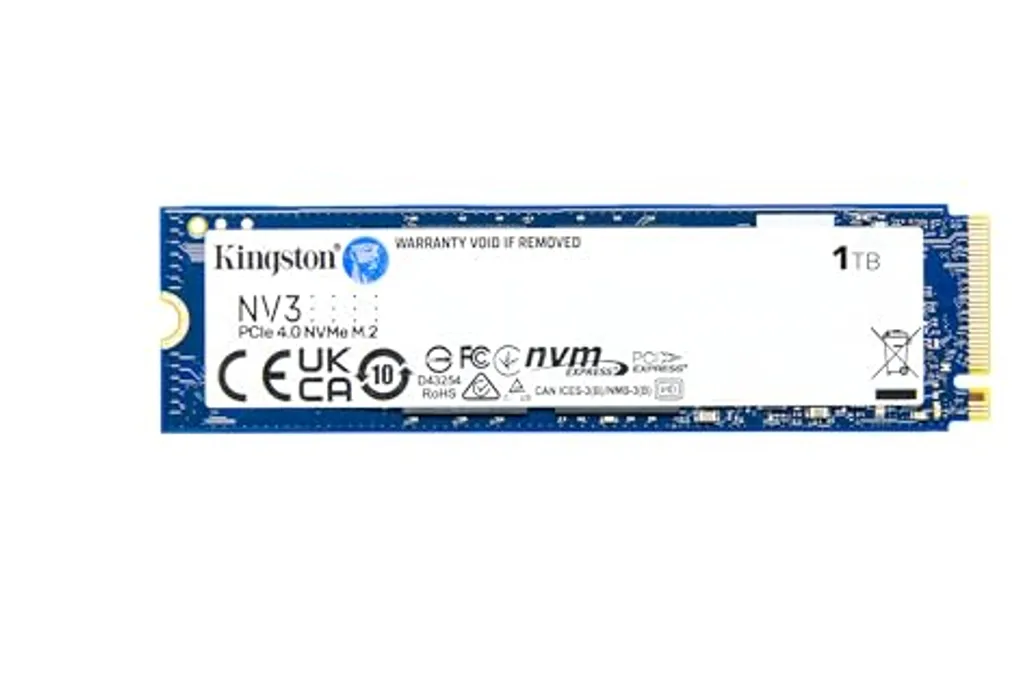
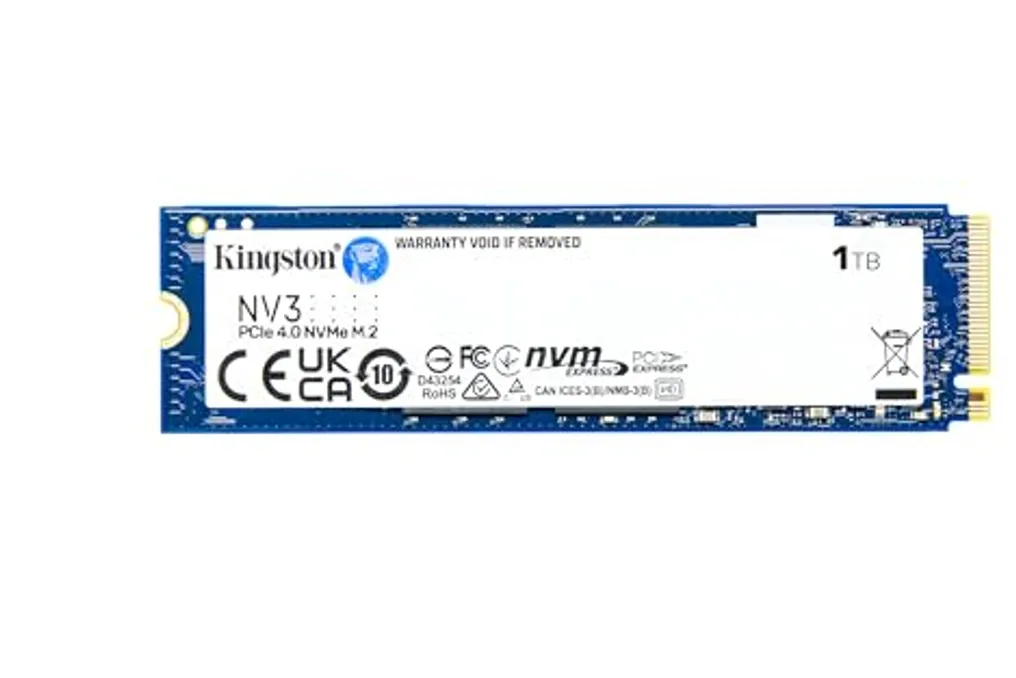
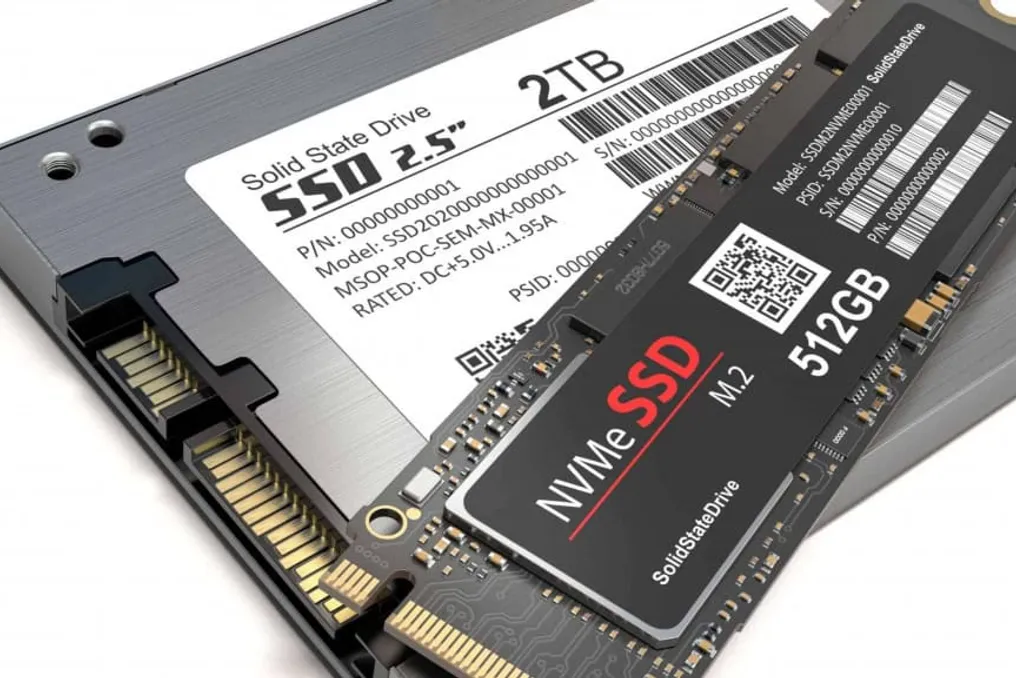
- M.2 NVMe: This is the current standard format for thin laptops and modern computers. It resembles a blade and connects directly to the motherboard, using the NVMe protocol via PCIe lanes, which provides the highest speeds on the market. The most common size is 2280 (22 mm wide by 80 mm long).
- 2.5-inch SATA: It has the form factor of a conventional portable hard drive. It is indicated for modernizing older PCs or laptops without an M.2 slot. Although it is much superior to an HDD, its speed is limited by the SATA bus (approximately 550 MB/s).
PCIe Generation (for M.2 NVMe SSDs)
When choosing an M.2 NVMe SSD, it is vital to check which PCIe bus generation is supported by both the motherboard and the processor.
- PCIe 3.0: Offers speeds of up to about 3,500 MB/s, presenting a great cost-benefit ratio for everyday tasks and office environments.
- PCIe 4.0: Reaches speeds of up to approximately 7,500 MB/s and has become the standard for modern gamers, video editing, and is a requirement for storage expansion on the PlayStation 5.
- PCIe 5.0: Can reach speeds exceeding 14,000 MB/s, recommended for enthusiasts, intensive Artificial Intelligence workloads, or massive data transfers. This level requires robust heat sinks and cutting-edge hardware.
To identify the compatible generation, simply consult the motherboard model. If the computer is already in use, the free program CPU-Z can provide the board name in the 'Mainboard' tab. If you are building the PC, the information will be on the product box. Subsequently, the model must be searched on the manufacturer's website, checking the 'Storage' section to see if the M.2 slot supports PCIe 3.0, 4.0, or 5.0.
If the verification seems complicated, there is no need to worry, as these connectors are universal. A newer SSD (PCIe 4.0) will work perfectly in an older motherboard (PCIe 3.0). The fit is identical, and the computer will boot normally, although the component's speed will be limited to the maximum the board can deliver.
Cache Memory (DRAM vs. DRAM-less)
With DRAM: The SSD has a dedicated RAM memory chip to map data locations. This accelerates file access and maintains constant performance, even when the drive is almost full or during large transfers. It is recommended for the primary drive where the operating system is installed.
DRAM-less: These are more affordable options. They use technologies such as HMB (Host Memory Buffer) to borrow a small part of the computer's own RAM. They are ideal as secondary storage drives or for tight budgets.
Durability (TBW)
The TBW (Terabytes Written) indicator shows the total amount of data that can be written to the SSD before the cells begin to deteriorate. For example, a 1 TB SSD with 600 TBW means it can be completely filled 600 times. For the average user, any value above 300-600 TBW ensures years of trouble-free operation.
Thermal Management (Heatsinks)
Very high-speed SSDs (especially high-performance PCIe 4.0 and PCIe 5.0) generate significant heat under intense use. If the temperature rises too high, the SSD activates thermal throttling, reducing speed to cool down. It is important to confirm whether the motherboard already has a heatsink or to purchase an SSD model that comes with a factory-integrated heat sink (if there is physical space in the case).
Recommendations by Usage Profile
Suggestions vary according to user needs:
- Basic/Office Use: 2.5″ SATA SSD or M.2 PCIe 3.0 with a capacity between 512GB and 1TB. The priority should be the lowest price.
- Gaming and Multimedia: An M.2 NVMe PCIe 4.0 (such as WD Black SN850X or Samsung 990 Pro) with 1TB or 2TB is recommended.
- Professional (4K/8K Editing, Data Science): Requires M.2 NVMe PCIe 4.0 or 5.0, equipped with dedicated DRAM, high TBW ratings, and a robust heat sink.
Models Available on the Market
Various models are available, catering to different profiles:
- Basic M.2 NVMe: An M.2 blade-format SSD, operating at PCIe Gen3 speeds with up to 2,400 MB/s read speed. It is an economical alternative focused on energy efficiency for common laptops.
- Entry Compact Unit: An entry-level M.2 unit focused on cost-effectiveness, which uses the NVMe PCIe 3.0 protocol and promises read rates of up to 2,465 MB/s, accelerating the loading of systems and light games.
- Modern High-Performance Model: An M.2 model compatible with PCIe Gen4, delivering fast speeds of up to 6,000 MB/s read, ideal for those dealing with heavy files or requiring high performance.
- High Capacity in Gen3: Stands out with its large 2TB capacity in the M.2 format, operating in PCIe Gen3, with balanced read speeds of up to 3,200 MB/s, great for those who need a lot of fast space for work or gaming.
- Traditional 2.5-inch SATA: In the classic 2.5-inch format, its speed is limited by the SATA interface, reaching up to 545 MB/s. It is perfect for replacing old HDDs and saving battery life on older laptops.
- Popular 2.5-inch Option: One of the most sought-after 2.5-inch SSDs, with nearly 1TB of space. It operates with moderate read rates of up to 500 MB/s, making it the ideal upgrade to eliminate the slowness of old PCs without an M.2 slot.
- Ultra-Economical Unit: A low-capacity, traditional 2.5-inch unit offering speeds of up to 550 MB/s, suitable only for basic office tasks on old computers with a very tight budget.
- Intermediate Corporate Model: A medium-capacity (480GB) model in the classic 2.5-inch format, offering up to 550 MB/s read speed, promising good resistance to impacts and vibrations for corporate or daily home use.